Drop a .docx in and get a PDF back. The conversion runs inside this tab — open DevTools and watch: nothing carrying your document leaves the device. No account, no watermark, no page cap.


Turn a .docx document into a clean, shareable PDF — right in your browser.
🔒 Private by design: files are converted in your browser and never uploaded.
The converter is code running in your browser tab — a desktop app that happens to live on a web page.
Drop a .docx into the box or tap “Choose file”. Nothing is uploaded — the converter is code running in your own browser.
Paragraphs, headings, bold/italic/underline, colors, indents, bullet and numbered lists, tables and embedded images are laid out onto proper PDF pages.
Your PDF looks identical everywhere it opens — right for resumes, invoices, assignments and anything official.
Each one runs right in this tab — pick what you need.
Merge several .docx files into a single PDF, in the order you choose.
Convert many .docx files at once — one PDF each, delivered as a ZIP.
Turn a Word document into high-resolution JPG images — one per page.
Turn a plain text or Markdown file — or text you paste — into a typeset PDF.
Pull the plain text out of a .docx into a clean .txt file.
Need the other direction? Our PDF to Word converter is on its own site.
A .docx is a set of instructions your reader's software interprets. Open it on a machine without your fonts, or in a different version of Word, and the line breaks move, the table spills onto a second page, and the resume you spent an evening on arrives looking careless. PDF freezes the result: what you see when you download it is exactly what a recruiter, client, lecturer or letting agent sees. That is also why almost every upload form — job applications, tax portals, university submissions — asks for a PDF.
Headings and body text with their real sizes, bold, italic and underline, text colors, clickable web and email links, left and right indents, hanging indents, bullet lists, numbered lists (including letters and Roman numerals, restarting where your document restarts), tables with wrapped cell text and horizontally merged cells, embedded JPG and PNG images at their original resolution, and the page size and margins set in your document. Fonts are embedded in the output, so the file is self-contained and prints the same anywhere.
Two things about tables specifically, since converters usually gloss over them: every table is drawn with a light grey border whether or not yours had one, and vertically merged cells (a cell spanning several rows) are laid out as separate cells. Text, alignment and column widths come across.
Very complex Word layouts are approximated rather than reproduced: floating text boxes, multi-column sections, SmartArt, charts, headers and footers, footnotes and tracked-change markup are not carried across. Everyday documents — letters, resumes, essays, invoices, contracts, reports — come out right. If you need pixel-perfect fidelity on a heavily designed brochure, print to PDF from Word itself; for everything else this is faster and never sends your file anywhere.
The embedded font covers Latin, Cyrillic and Greek — every Western and Eastern European language, including Ukrainian, Russian, Polish and Turkish. Chinese, Japanese, Korean, Thai and Devanagari are not supported yet. Rather than handing you a PDF full of blank boxes, the converter checks the text first and tells you plainly when your document is in a script it cannot set.
Most online converters upload your document to a server and ask you to trust a deletion policy. This one has no server to upload to: the parser and the PDF typesetter are JavaScript running in your tab. Load this page, switch off your Wi-Fi, and the conversion still works — that is the proof. It makes the tool safe for contracts, medical letters, payslips and anything else you would rather not hand to a stranger's queue.
The free app converts Word to PDF fully offline, straight from Files or the share sheet.
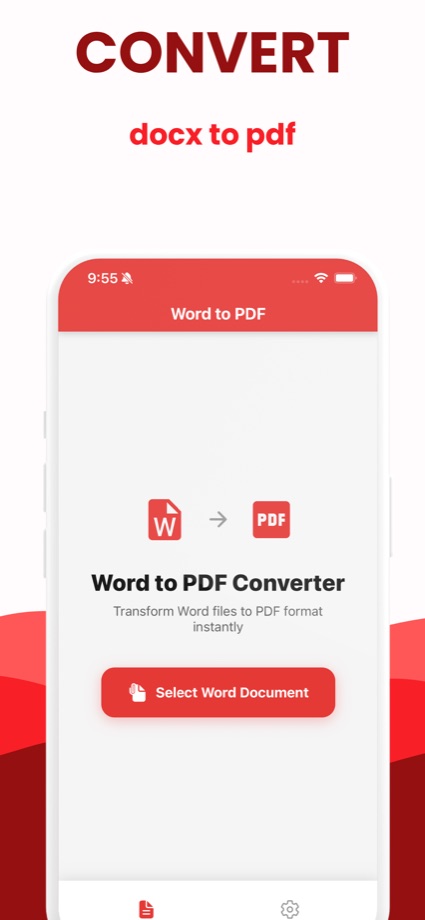
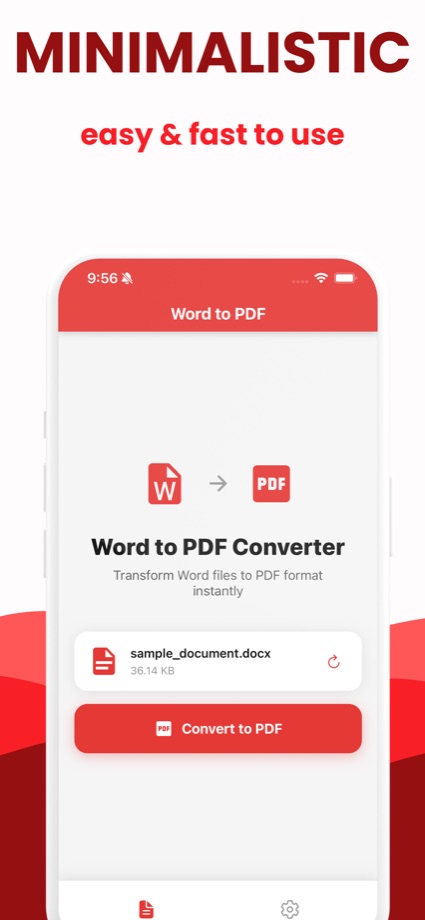
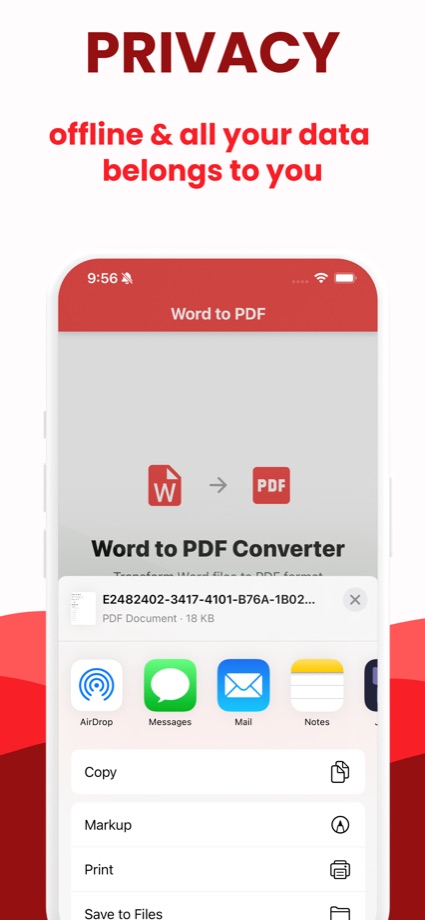
Convert Word documents to PDF on your phone — offline, on device. Import from Files, email or a cloud drive, then share the PDF by Mail, Messages, AirDrop or straight to another app.
Short, practical guides to the document problems people actually hit.
The real cause of font substitution in PDF exports, how to embed fonts in Word so it stops, and when a substitute typeface is unavoidable.
Read the guide → GuideA 60-second pre-flight check in Word, then fixes for shifted images, split tables, extra pages and changed spacing after conversion.
Read the guide → GuideWhy your PDF gained an empty page — the four causes in Word, how to see each one with formatting marks on, and the fix for each.
Read the guide → GuideFive ways to turn a .docx into a PDF with no Office license — Google Docs, LibreOffice, Word for the web, your browser, your phone.
Read the guide → GuideFiles app, the Print trick, Safari or the free app — every way to turn a .docx into a PDF on iPhone or iPad, and what each one costs you.
Read the guide → GuideWord app, Google Drive, Samsung or Chrome — convert a .docx to PDF on Android free, with no watermark and no account to create.
Read the guide →Get the free app — offline Word to PDF on iPhone, iPad and Android.
 Word to PDF